Airplane Management
Create and manage airplane profiles used for weight & balance and performance calculations.
In the Fly Solo plan, only one airplane is allowed.
Other plans support multiple airplanes.
Accessing Airplane Management
You can access your airplane list from the navigation menu. Depending on where you are in the app, tap the menu icon (☰) in the top-left corner, then select Airplanes.
From there, you can create and manage your airplanes.
Overview
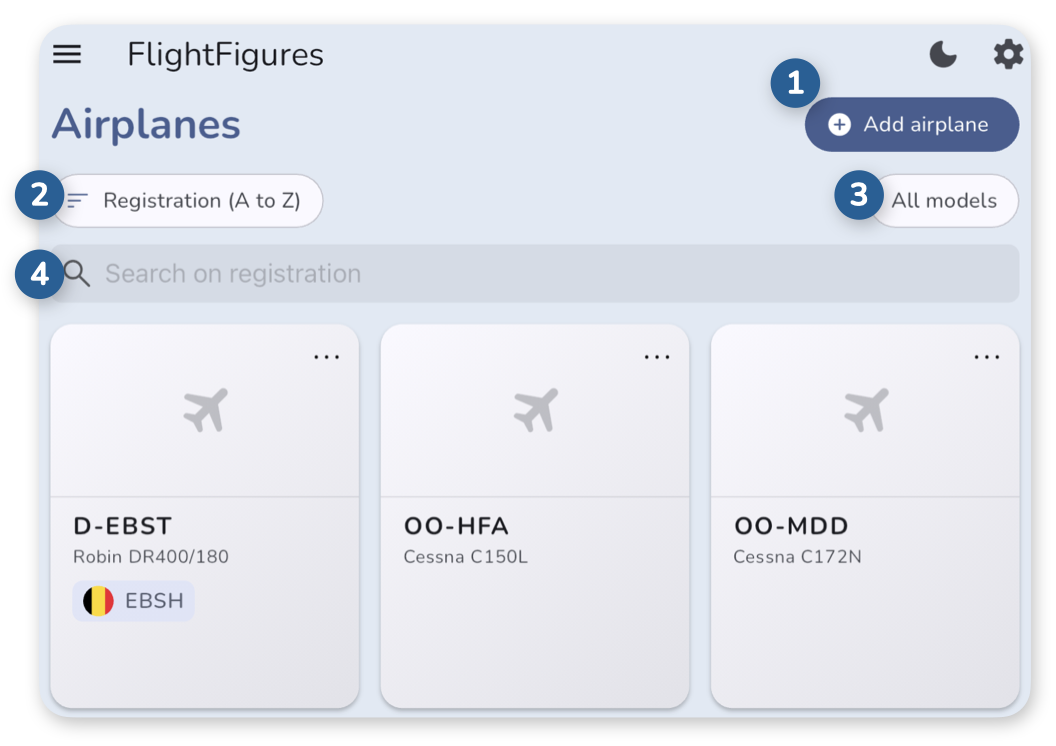
The screen provides several tools to help you organize and find airplanes quickly:
- Add airplane – Create a new airplane profile
- Registration sorting – Sort airplanes alphabetically by registration (A-Z or Z-A)
- Model filter – Filter the list by airplane model
- Search bar – Search airplanes by registration
Taping an airplane on the list opens its calculation screens, starting with Weight & Balance.
Adding a new airplane
-
Tap Add airplane from the Airplane Management screen.
-
Fill in the following fields:
-
Photo (optional) – Add a picture for easier identification.
-
Registration – Tail number.
-
Model – Select from the list.
-
Home base (optional) – Search by ICAO code, IATA code, or name.
-
Configuration – Choose the correct configuration of your airplane.
Options may include different engines, fuel tanks layouts, seating configurations, propellers, or other variations that affect performance or weight & balance.
Important
Changing the configuration later, when editing the airplane, will delete all previously saved weight & balance and performance data.
-
Empty Mass – From your airplane documentation.
-
Empty Moment – From your airplane documentation.
-
Mass and Balance Units – select the units to be used in the loadsheet (e.g. kilograms/pounds for mass, and relevant units for moment).
-
Speed Unit – Used for True Airspeed (TAS) in cruise performance. This should match the unit used on the airplane’s speed indicator (e.g. knots, km/h, mph).
-
Fuel Unit – Used for fuel in both the loadsheet and cruise performance (e.g. Liters, Imperial Gallons, U.S. Gallons).
-
-
Tap Save.
Editing an airplane
-
Tap on the three dots (…) to open the menu.
-
Tap Edit.
-
Update the desired fields.
Important
Changing the Configuration of the airplane will delete all previously saved weight & balance and performance data.
-
Tap Save.