Weight & Balance
The Weight & Balance screen lets you calculate airplane loading and verify CG limits in real time.
Accessing Weight & Balance
To open Weight & Balance, select an airplane from your airplane list. The app will open the calculation screen for the selected airplane, starting with Weight & Balance.
Overview
The screen is divided into three areas:
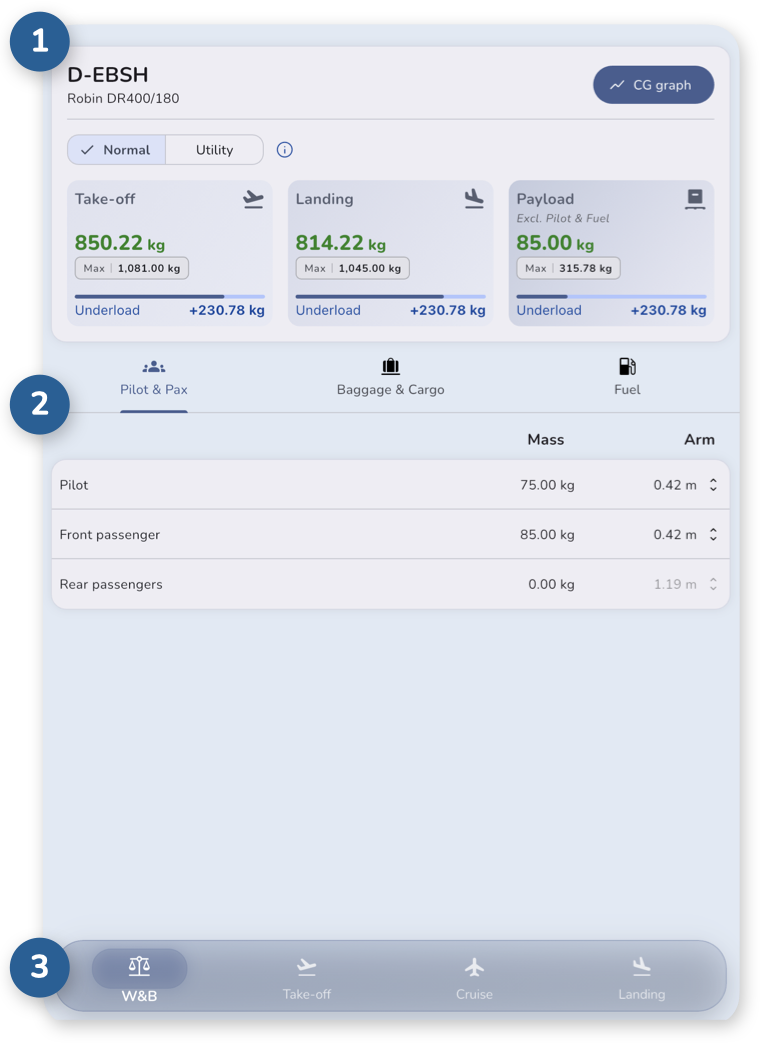
- Calculation results – Displays weights, limits, and any related warnings.
- Input – Enter pilot & passengers, baggage & cargo, fuel.
- A bottom navigation bar allows you to switch between different calculation modules.
All results update instantly as you enter data.
Understanding the results
The results section displays the calculated weights, underload/overload conditions, and related information for the selected airplane.
Header
At the top of the section, you will find:
- the airplane registration and model
- a button giving you access to the CG graph.
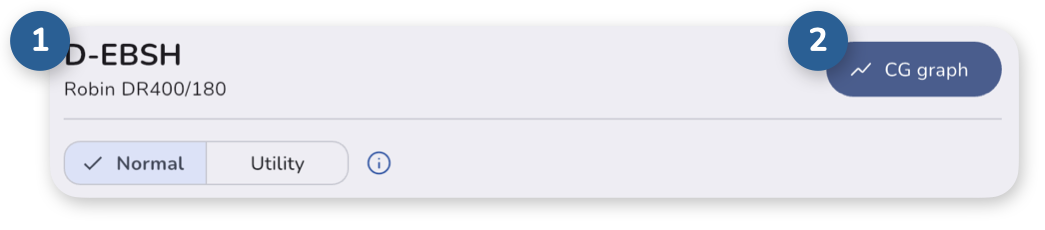
Below the header, you will find a Certification Category selector that allows you to choose the airplane’s operating category (e.g., Normal, Utility).
Certification Categories
Certification categories define the specific operational scope and flight maneuvering limits an airplane was approved for by airworthiness authorities.
Selecting a different category adjusts the active weight envelopes and limits, which can modify your Regulated Take-Off Mass (RTOM) and Regulated Landing Mass (RLM), ultimately affecting your Allowable Take-Off Mass.
Operating in one or another category has direct implications on maximum allowable weights, structural load factors (G limits), and authorized flight maneuvers. Refer to the Aircraft Flight Manual and applicable regulations for operational limitations and requirements.
Read more
- Read more about Regulated Take-Off Mass (RTOM) in the Take-Off Performance module.
- Read more about Regulated Landing Mass (RLM) in the Landing Performance module.
Weights
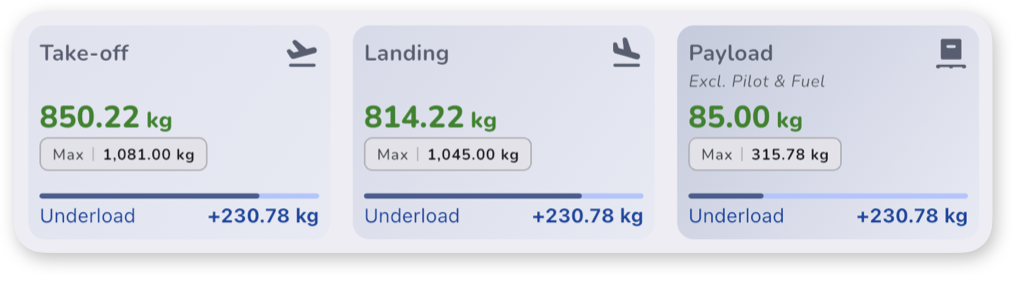
The weights section provides a clear breakdown of your flight’s mass status through three dedicated cards:
- Take-off – The weight at take-off and the underload/overload condition;
- Landing – The estimated weight upon landing and the underload/overload condition, accounting for planned fuel burn;
- Payload – The total weight of passengers, baggage, and cargo carried on the flight.
Each value shows:
- actual weight – The current calculated value
- maximum allowed – The active operational limit weight. Click on the value to have details about the limiting factor.
- margin (Underload / Overload) – A dynamic value accompanied by a visual status indicator
Margin & Load Status (Underload / Overload)
The margin indicates how close the current mass is to the maximum allowable limit:
- Underload (Positive value) – Represents remaining payload capacity or safety margin. The flight is within legal structural and performance limits.
- Overload (Negative value) – Indicates that the current mass exceeds the maximum allowable limit. The visual indicator highlights this condition, signaling that weight must be reduced before flight.
How is the Allowable Take-Off Mass calculated?
The Allowable Take-Off Mass displayed on the take-off card is the maximum permissible weight for departure.
To ensure complete safety and regulatory compliance, the application automatically determines this value by taking the most restrictive (lowest) of three key limits:
- Maximum Zero Fuel Mass (MZFM) + Take-Off Fuel – The maximum allowed airplane weight before usable fuel is added, plus your total planned take-off fuel.
If the airplane manufacturer does not specify a MZFM (as is often the case for light airplane), this limit is simply omitted.
- Regulated Take-Off Mass (RTOM) – The performance or structural weight limit for departure (Read more in Take-Off Performance module).
- Regulated Landing Mass (RLM) + Planned Trip Fuel – The limit ensuring the airplane will not exceed its allowable landing mass upon arrival after burning the planned trip fuel.
The application continuously compares these three limits and automatically selects the lowest one as your Allowable Take-Off Mass.
Changing actual conditions (airfield, runway, elevation, temperature, wind etc.) on the Take-Off Performance or Landing Performance module may update the Allowable Take-Off Mass. The weights will be updated accordingly.
Payload breakdown
The Payload card focuses specifically on revenue load (passengers, baggage, and cargo).
It compares your actual payload against the maximum allowable payload for the flight – which is dynamically limited by structural limits, fuel requirements, or performance constraints (RTOM / RLM).
Your loading may trigger warnings or restrictions. Always review any messages displayed.
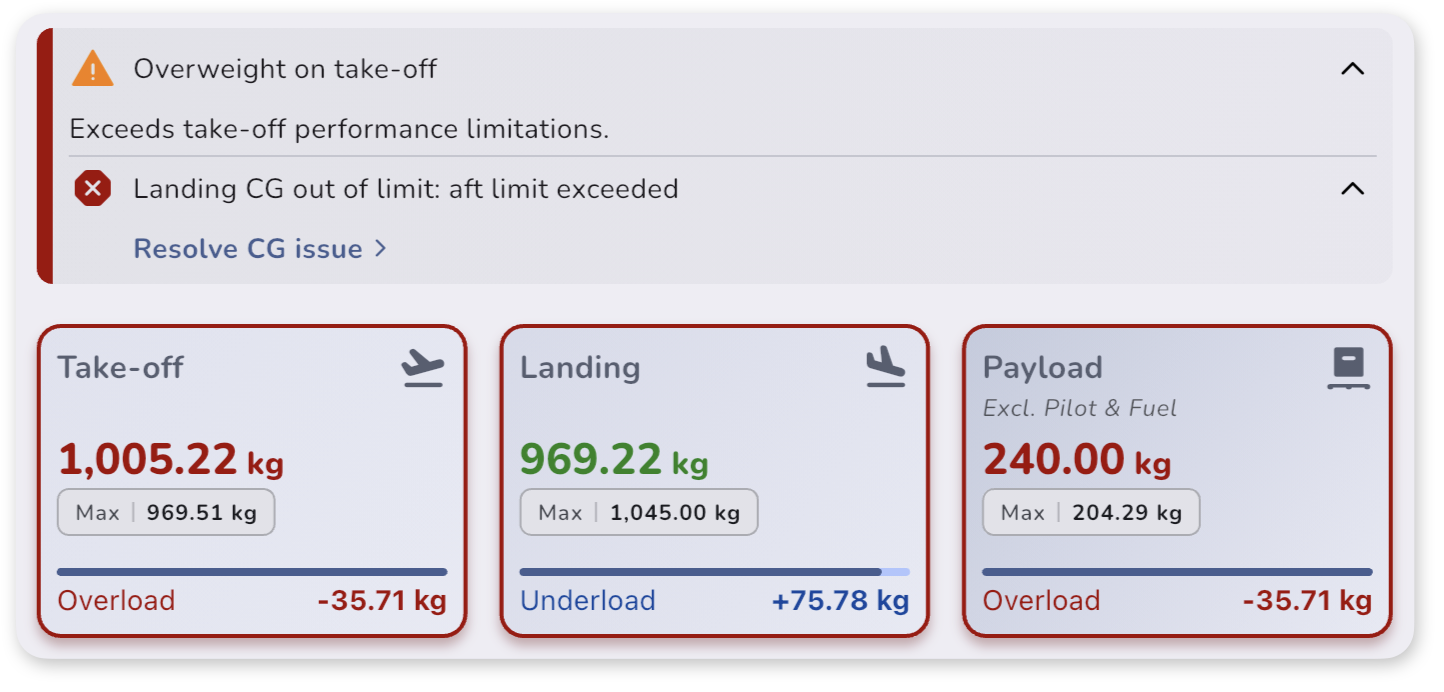
CG out of limits
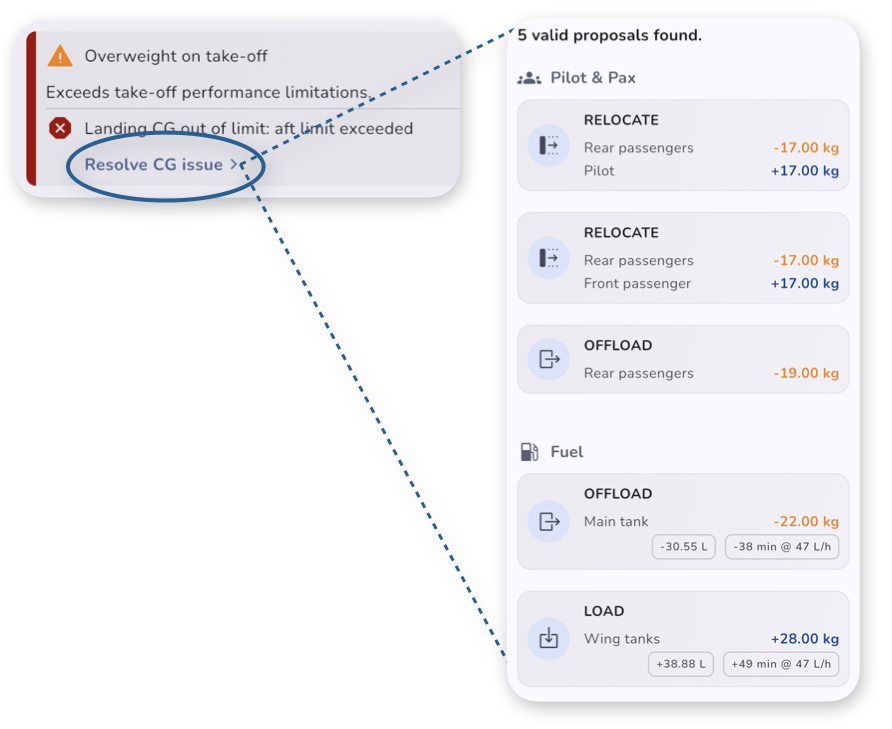
If the CG falls outside the envelope for the selected certification category, a warning will be displayed. Expanding the warning gives you access to the CG issue resolver.
Clicking Resolve CG issue opens a side panel with tailored resolution proposals to bring the CG back within safe envelope limits.
For fuel-related adjustments, each proposal displays the equivalent fuel volume required, along with the corresponding flight time based on your cruise performance calculation.
Entering data
Pilot & Passengers
Enter the weight of each occupant.
If multiple seating positions are available, select the correct one with the Arm selector.
Baggage & Cargo
Add baggage and cargo weights in their respective compartments.
Fuel
-
Select the fuel type: affects density

* Density units match the units selected when creating the airplane. -
Select fuel quantity per tank – weight is calculated automatically
Only enter usable fuel. Unusable fuel is already included in the calculation.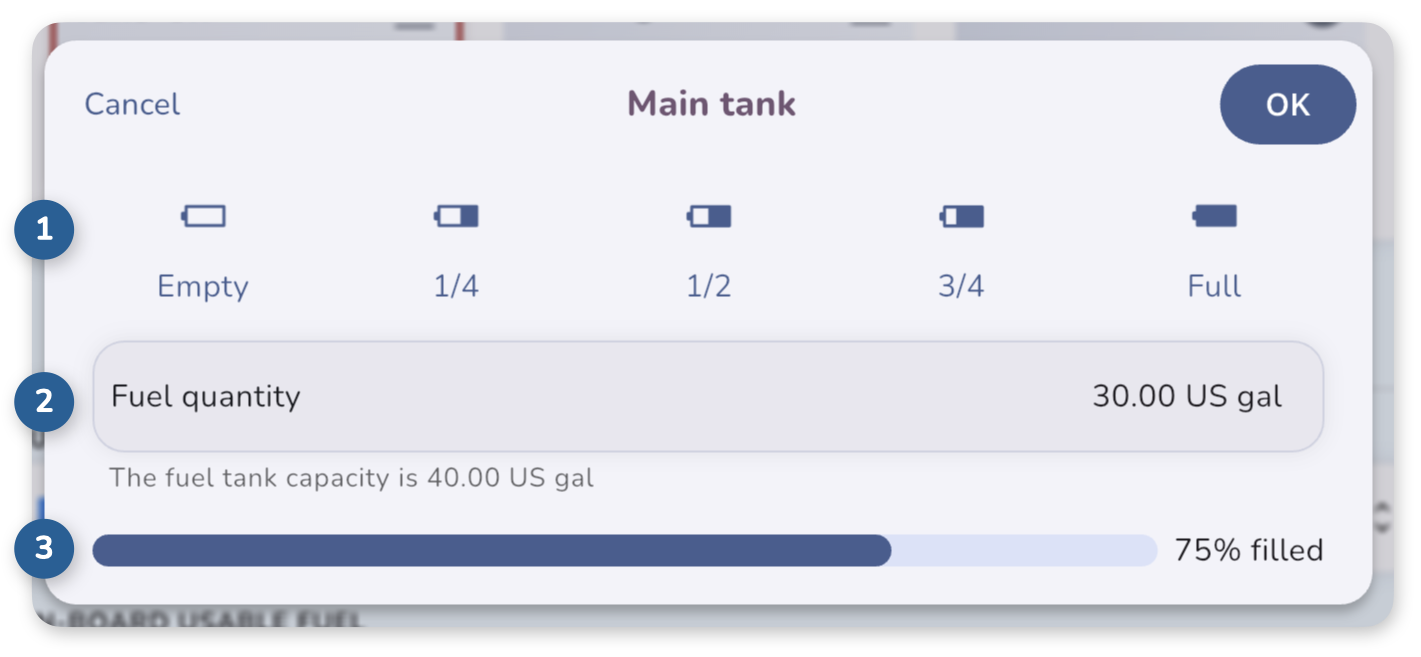
- Quick selection – Choose a preset fuel level (Empty, 1/4, 1/2, 3/4, Full)
- Manual input – Enter a specific fuel quantity
- Fuel gauge – Visual indication of tank fill level
-
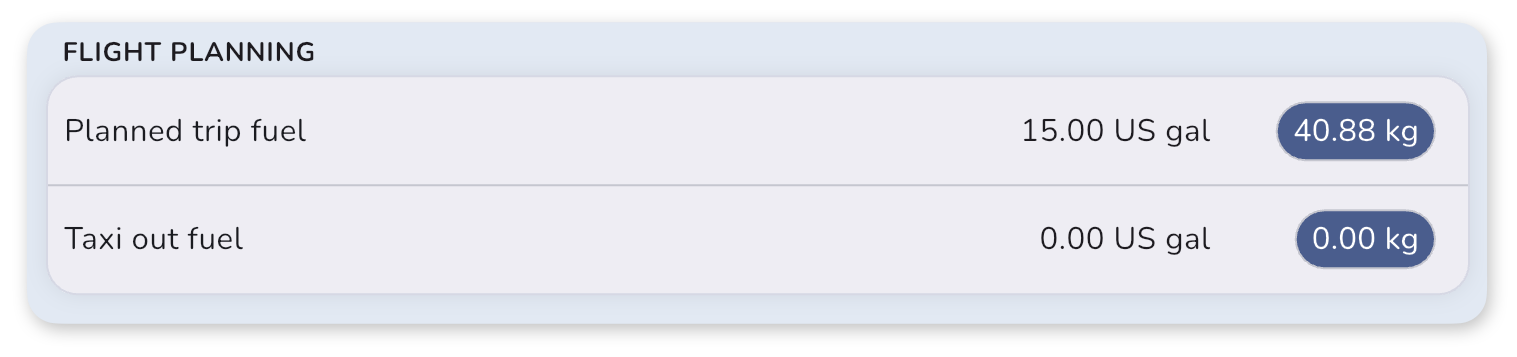
Optionally, specify:
- Planned trip fuel
- Taxi out fuel
These values are used to calculate a more accurate take-off and landing weight.
CG Graph
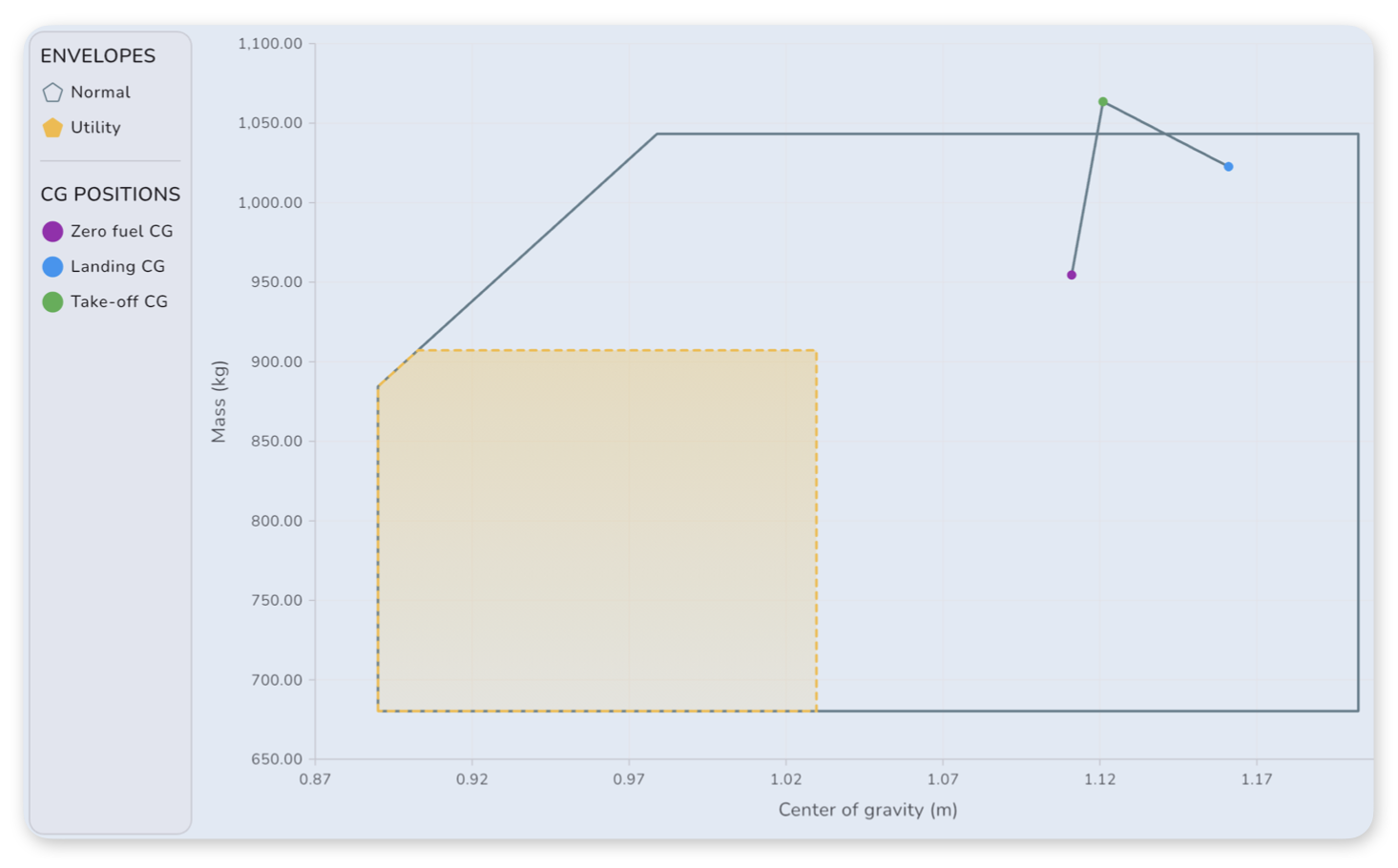
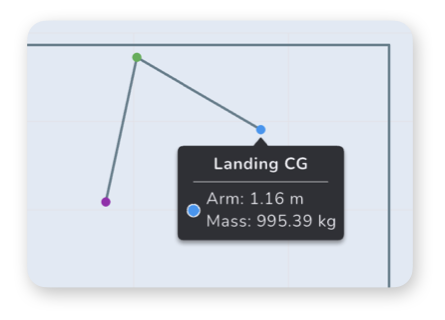
The CG graph shows the airplane’s center of gravity location within the envelope(s) for:
- Zero Fuel
- Take-off
- Landing
Each point must remain within the allowed envelope.
Some airplane may have multiple envelopes depending on configuration, phase of flight or certification categories (Normal, Utility, etc.).
Tip
Click on any CG point to see the details.
Important
Common mistakes
- Selecting the wrong fuel type will use an incorrect density and result in inaccurate weights.
- Missing trip fuel will overestimate landing weight (equal to take-off weight).
- Incorrect passenger or cargo distribution may place the CG outside limits.